Free sample lesson · Version Control with GitHub for Designers
Commits Are Snapshots
Why is landing-page-final-v7-REAL.html a sign your project needs history?
Lesson 1 of the Wondering course Version Control with GitHub for Designers
The Trouble With final-v7
You have seen it: landing-page-final-v7-REAL.html sitting next to six other 'final' files.
Each copy was an attempt to protect earlier work. Together, they hide two things: which version is current, and why it changed.
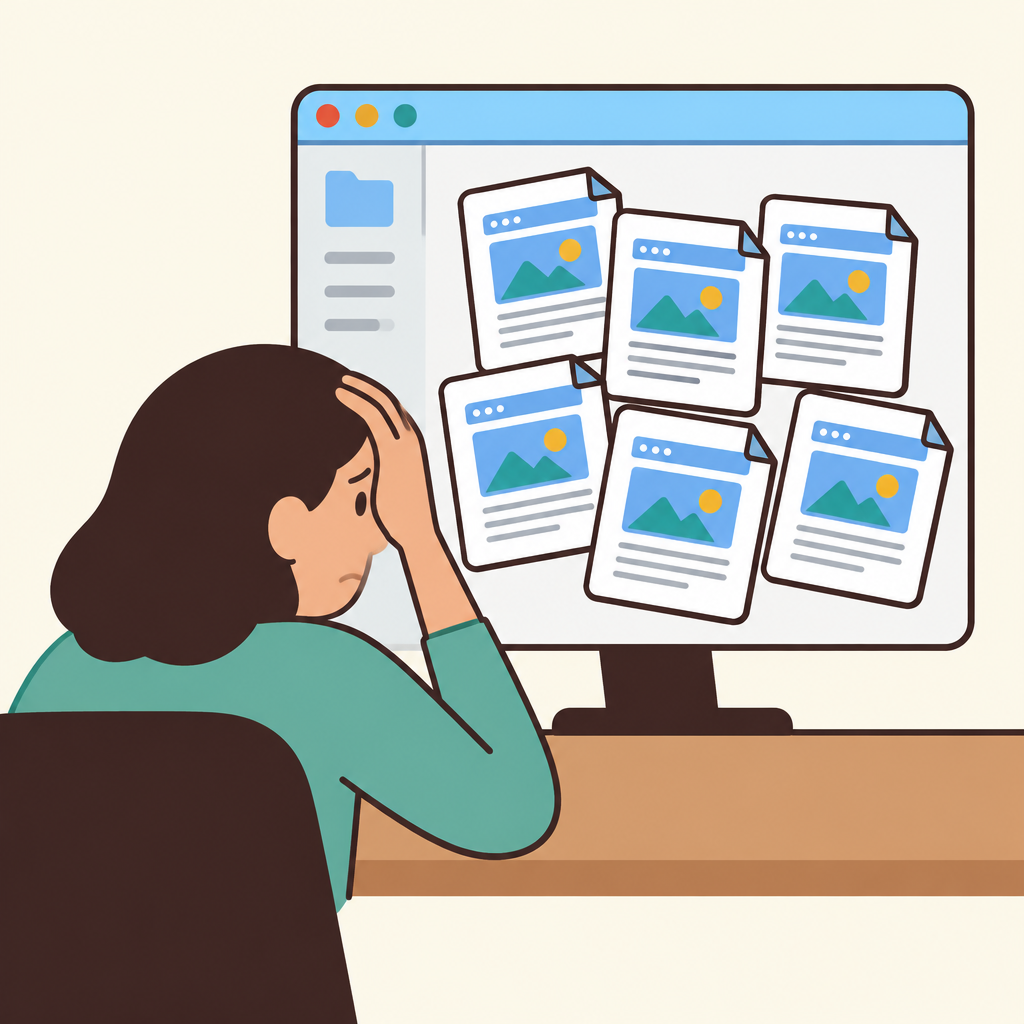
Notice that every copy looks the same, so nothing in the folder tells you which one is current or why each one exists.
That confusion is a sign your project needs history.
This lesson shows how a commit gives you that history without piling up duplicate files.
Version Control Tracks Every Change
Version control is the practice of tracking every change to a project's files over time.
With it, you can inspect or restore any earlier state. Everyone can also see who changed what.
Say a teammate asks why the hero image changed last Tuesday. The history shows the commit, its author, and its message.
Git is the version control system behind GitHub. It does this tracking for your team's repository.
A Commit Is a Snapshot
A commit records the state of every file in the project at one moment.
GitHub's documentation compares it to taking a photo of the project. The photo includes your HTML, your CSS, and your images, all together.
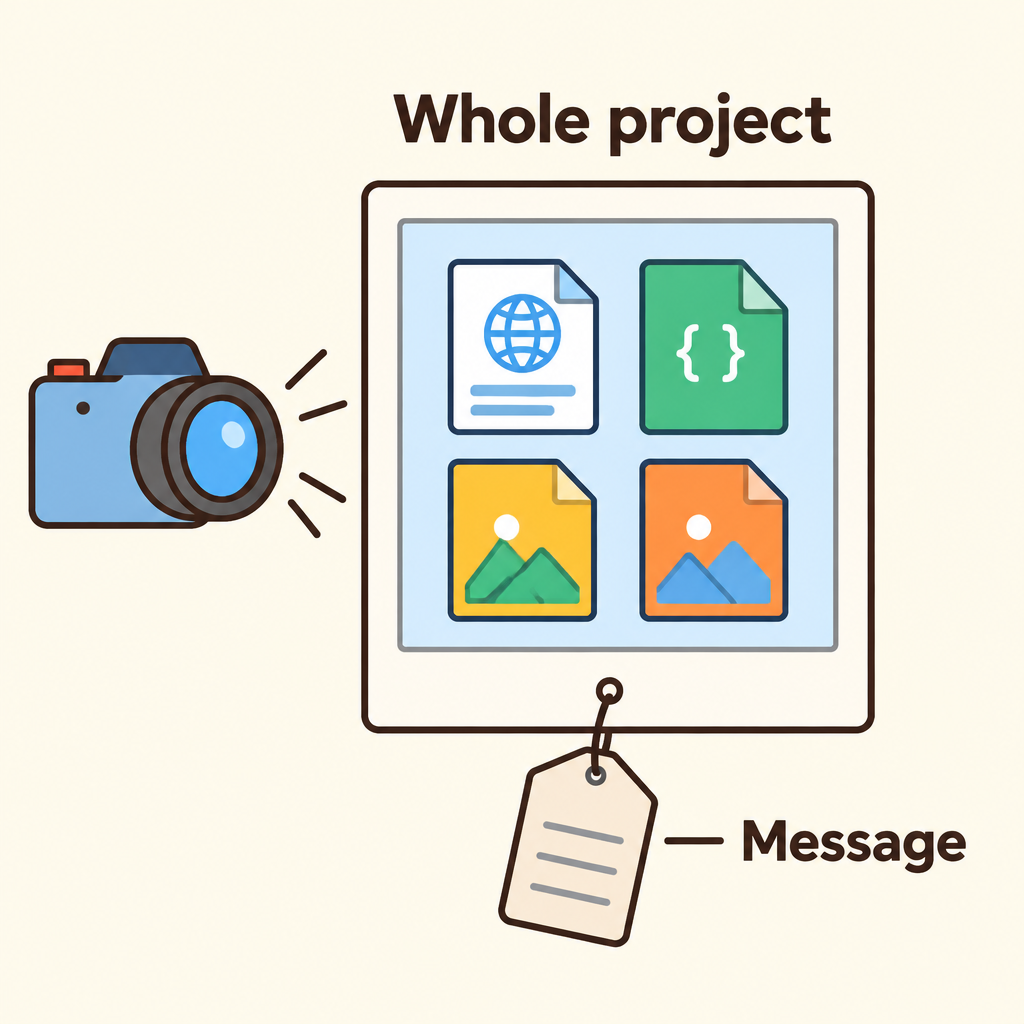
The frame holds every file at once, HTML, CSS, and images together, with a message attached that explains what changed.
Each commit also carries a short message describing what changed.
A common mix-up: thinking a commit saves only the file you were editing. It captures the whole project, so you can reopen exactly how everything looked.
Named Snapshots Beat Final Copies
Line up your commits in order and you get the project's history: a list of named snapshots.
Instead of saving pricing-final.html and pricing-final-2.html, a designer makes one commit called 'Shorten pricing headline'. The earlier version is still there to open.
Duplicate files hide which version is current and why it changed. A commit history answers both.
- Duplicate files
- Commit history
One boundary: a commit is not autosave. It happens only when someone chooses to record a snapshot.
Going Back to a Snapshot
A designer adjusts button colors in a prototype. They make a commit called 'Use brand green for primary buttons'.
Then they try a darker shade.
If the darker shade looks wrong, they go back to the snapshot from the first commit. No hunting through folders for an old file.
If it looks right, they record a new commit, and the history grows by one named snapshot.
- Adjust button colors
- Commit brand green: Message: 'Use brand green for primary buttons'.
- Try darker shade
- Looks right?
- Record new commit: The history grows by one named snapshot.
- Return to first commit: No hunting for an old file.
- Yes
- No
Why Designers Inherit History
Many people assume version control only matters to engineers writing code.
Yet designers increasingly touch project files directly. An AI tool might edit your prototype or landing page for you.
When that happens, you inherit the project's history whether or not you write code.
Tracked history helps whenever you need to see what an AI changed, explain a change to a teammate, or undo an experiment that went wrong.
Key Takeaways
A commit is a snapshot of the whole project plus a short message.
The sequence of commits is your project's history. You can browse it and return to any earlier state.
- A commit captures
- The whole project
- A short message
- History lets you
- Browse past states
- Return to an earlier state
- See what happened and why
Make a commit instead of a new final file.
Next time you feel the urge to save a file called final-v8, make a commit instead. Name it after what changed.
Then a teammate, or you next month, can see exactly what happened and why.
Check yourself
A designer can use version control to review changes made by an AI tool.
- True
- False
Answer: True
Correct. Version control is useful for design work because it shows what changed and helps restore an earlier state, even when an AI made the change.
In a project, a commit records the state of _____ at one moment and adds a short _____ describing the change.
Answer: In a project, a commit records the state of every file at one moment and adds a short message describing the change.
A commit captures the whole project, not only the file being edited. Its message gives the snapshot a useful explanation.
A designer is tempted to save landing-page-final-v8.html after changing a headline. What is the clearest alternative?
- Make a commit named “Shorten landing page headline”
- Make another copy named “landing-page-final-v9.html”
- Delete the previous final file before saving the change
- Save only the HTML file and ignore the other project files
Answer: Make a commit named “Shorten landing page headline”
A named commit records the project state and explains the change. The earlier state remains available without creating confusing duplicate files.
Keep going
This is lesson 1 of 8 in Version Control with GitHub for Designers. Next up:
- Git, GitHub, and Repositories
- Commit Messages People Can Read
- Branches Are Safe Sandboxes
- Pull Requests Are Design Reviews
- Merge Conflicts in Plain Language
Wondering turns any topic into short lessons you can read, watch, or listen to, with practice questions and an AI tutor.