Free sample lesson · Groovy House in Logic Pro
Interface Basics
Where do you start when opening Logic Pro for the first time?
Lesson 1 of the Wondering course Groovy House in Logic Pro
Map the Workspace First
Logic Pro can look crowded when you open it for the first time.
Start by treating the window as a map with five landmarks: the Tracks area, Library, Inspector, transport controls, and main toolbar.
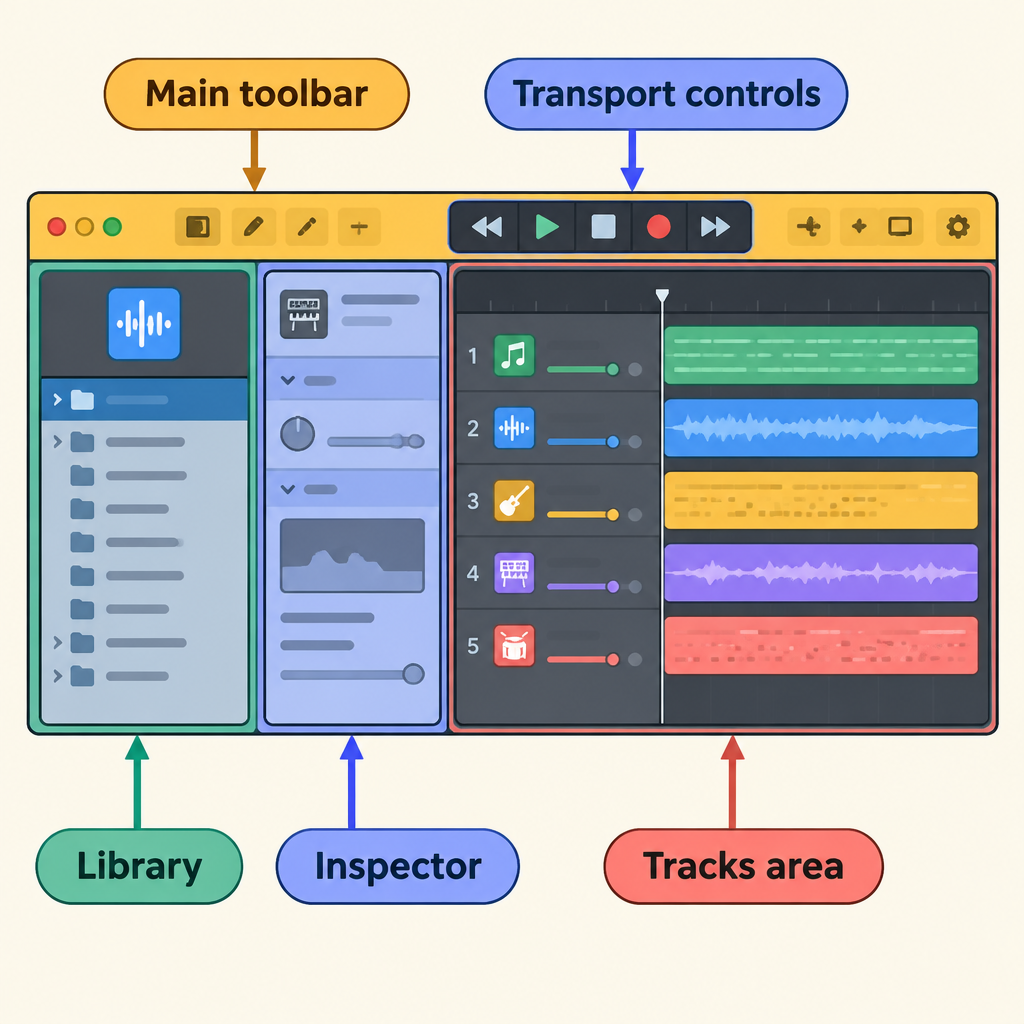
Five landmarks in one workspace
Each landmark answers a different need, from arranging the song to choosing sounds, viewing settings, and controlling playback.
You do not need every button yet. Recognizing these areas gives you a clear starting point and protects your creative flow.
Build in the Tracks Area
The Tracks area is where you build and arrange your song.
Building means placing the musical material that belongs in the project. Arranging means deciding how that material is organized across the song.
Keep the job simple in your mind: when you want to work on the song’s arrangement, look for the Tracks area.
The Library helps choose sounds and instruments, so it is not the answer to an arranging task.
- Tracks area
- Library
Choose Sounds in Library
The Library helps you choose sounds and instruments for the music you are making.
Use it when your question is, “What sound should I use?” That is a choice task, not an arrangement task.
A beginner can stay oriented with three moves: name the need, find the Library, then choose a sound or instrument.
After the choice, return your attention to building the song in the Tracks area.
- Name need: Ask what sound or instrument you need.
- Find Library: Go to the Library for that choice.
- Choose sound: Choose a sound or instrument.
- Return to song: Move your attention back to the Tracks area.
Read the Inspector Correctly
The Inspector displays settings for the selected track.
Within the project, one track is your current focus. That is the selected track, and the Inspector shows settings for it.
This creates a narrow scope: project, selected track, then that track’s settings in the Inspector.
- Project: The complete project you are working in.
- Selected track: The track that is your current focus.
- Inspector settings: Settings displayed for that selected track.
The Inspector narrows from the project to one track’s settings.
Before using the Inspector, name the selected track. That quick check keeps the settings connected to the right place.
Use the Transport Controls
At the top, the transport controls handle five essential jobs: play, stop, record, adjust tempo, and monitor project position.
Tempo is the project’s speed setting. Project position tells you where you currently are in the project.
These controls answer two practical questions: what should Logic Pro do now, and where is the project currently located?
When you need playback, recording, speed, or position information, look to this top control area.
Find the Main Toolbar
The main toolbar is a key landmark at the top of the Logic Pro workspace.
Treat the toolbar and transport controls as separate named areas, even though both appear at the top.
When scanning upward, locate the toolbar, then locate transport controls for play, stop, record, tempo, and project position.
- Top of workspace
- Main toolbar: A key landmark at the top.
- Transport controls: Controls for project operation.
- Playback: Play and stop.
- Recording: Record in the project.
- Tempo: Adjust project speed.
- Position: Monitor project position.
This distinction makes directions clearer: finding the toolbar is a location task, while using transport is a control task.
Let the Task Guide You
Fast navigation begins with the task, not with random clicking.
Ask what you need: arrange the song, choose a sound or instrument, inspect selected-track settings, or control playback, tempo, recording, or position.
Then match the task to its area: Tracks area, Library, Inspector, or transport controls.
If you only need to find the top landmarks, look for the main toolbar and transport controls together.
- Name task
- What is needed?
- Tracks area: Arrange the song.
- Library: Choose a sound or instrument.
- Inspector: Inspect selected-track settings.
- Transport controls: Control playback, tempo, recording, or position.
- Top landmarks: Find the main toolbar and transport controls together.
This task-first habit keeps your attention on the music.
Repeat Your Opening Scan
Before making music, run a short orientation routine.
Name the Tracks area for building and arranging. Name the Library for sounds and instruments, then the Inspector for selected-track settings.
At the top, identify the main toolbar and transport controls. Recall that transport covers play, stop, record, tempo, and project position.
Then begin your project with a confident start. Repeat this scan whenever you open Logic Pro until the workspace feels familiar and creative flow stays uninterrupted.
- Open Logic Pro: Begin with a short orientation routine.
- Name three areas: Find the Tracks area, Library, and Inspector.
- Find top landmarks: Identify the main toolbar and transport controls.
- Recall transport: Remember play, stop, record, tempo, and project position.
- Begin project: Start making music, then repeat the scan next time.
Check yourself
To choose a sound or instrument for a Logic Pro project, should you use the Library?
- Yes
- No
Answer: Yes
Yes. The Library is used to choose sounds and instruments. The Tracks area is used to build and arrange the song.
For common project tasks, the _____ handles song arrangement, the _____ supplies sounds and instruments, and the _____ shows settings for the selected track.
Answer: For common project tasks, the Tracks area handles song arrangement, the Library supplies sounds and instruments, and the Inspector shows settings for the selected track.
Each area has a different job: the Tracks area builds and arranges the song, the Library helps choose sounds and instruments, and the Inspector displays settings for the selected track.
Which Logic Pro area should you use when you need to adjust tempo or check the current project position?
- Transport controls
- Library
- Inspector
- Tracks area
Answer: Transport controls
Use the transport controls. They handle play, stop, record, tempo, and project position. The main toolbar is a separate top landmark, not the control area for these tasks.
Keep going
This is lesson 1 of 12 in Groovy House in Logic Pro. Next up:
- Tempo Setup
- Drum Patterns
- Hi-Hat Swing
- Bass Selection
- Bass Grooves
Wondering turns any topic into short lessons you can read, watch, or listen to, with practice questions and an AI tutor.